✦ Pet Skins
How to open
Type /pets skins.
Choose a skin to unlock or equip it. Default Skin removes the selected skin. Previous and Next browse pages. Back returns to the selected pet or the Pet Hub.
What each button does
✦ Pet Skins
These are captured in-game menus. Your items, progress and timers can change.
In-game menu pictures
Example state · bracketed values depend on your game.No Skins AvailableNo purchasable skinsexist for this pet yet.Example state · bracketed values depend on your game.BackReturn to the previous menu.Default SkinRemove the active skinfrom this pet.
Click to use default.Previous PagePage 1 / [pages]Example state · bracketed values depend on your game.Skin StatusUnlocked: [in-game value]Showing: [in-game value]Page: 1 / [pages]Example state · bracketed values depend on your game.Next PagePage 1 / [pages]Example state · bracketed values depend on your game.CloseClose this menu.
Explore the button explanations
Menu picture
Illustrated control map. Item availability, labels and locked states can change in-game. Symbols identify actions; they are not exact item textures.
Choose a pictured button to read what it does. Use arrow keys to move between buttons. On a phone, scroll the picture sideways.
✦ Pet Skins
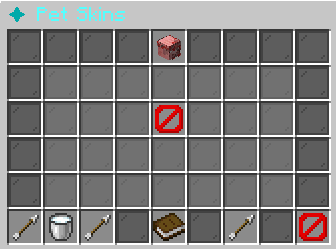
Top row: Selected pet / Pet Skin Shop: Read Selected pet / Pet Skin Shop.
Middle: Pet skin: Read this cosmetic’s unlock status and price. Loading Skins: Read Loading Skins.
Bottom row: Back: Return to the previous menu. Default Skin: Use the pet’s original appearance. Previous Page: Show the previous page. Skin Status: Read the selected skin and unlock status. Next Page: Show the next page. Close: Close this menu.
Pictures
Example state · bracketed values depend on your game.No Skins AvailableNo purchasable skinsexist for this pet yet.Example state · bracketed values depend on your game.BackReturn to the previous menu.Default SkinRemove the active skinfrom this pet.
Click to use default.Previous PagePage 1 / [pages]Example state · bracketed values depend on your game.Skin StatusUnlocked: [in-game value]Showing: [in-game value]Page: 1 / [pages]Example state · bracketed values depend on your game.Next PagePage 1 / [pages]Example state · bracketed values depend on your game.CloseClose this menu.